Why Your Internet is Slow and How to Speed It Up
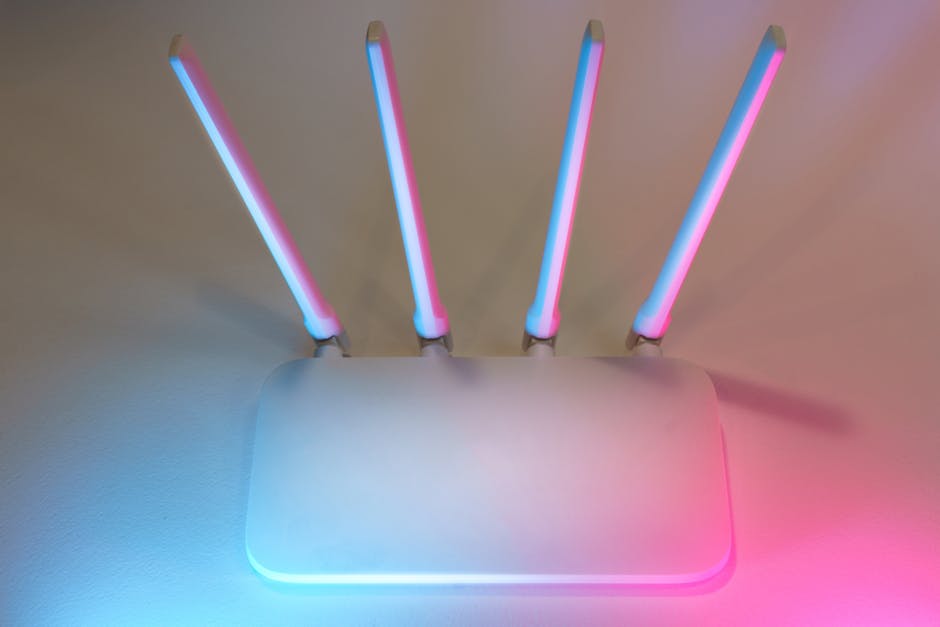
Slow internet is one of the most common complaints, yet often the issue is fixable without upgrading your package. Before assuming you need faster broadband, diagnose whether you're genuinely getting slower speeds than you're paying for.
Test your actual speed
Run a speed test at speedtest.net or fast.com to check your real speeds. Compare results to your package's advertised speeds. Test multiple times throughout the day—speeds fluctuate based on network congestion. If you're consistently getting 80-90% of advertised speeds, that's normal; ISPs don't guarantee 100%. If you're getting significantly less, contact your provider.
Check how many devices are connected
Every device connected to your network shares bandwidth. Streaming on one device, downloading on another, and video conferencing on a third quickly overwhelms most connections. Disconnect devices you're not actively using. Smart home devices, security cameras, and cloud backups all consume bandwidth invisibly.
Close unnecessary browser tabs and applications
Websites and applications running in the background consume bandwidth and slow everything down. Close browser tabs you're not using. Check your device's task manager to identify programs consuming network resources. Streaming services, cloud syncing, and automatic updates are common culprits.
Move closer to your router
WiFi signal weakens with distance and obstacles. If you're far from your router or separated by thick walls, signal becomes unreliable. Moving closer or repositioning your router improves speeds dramatically. If that's impractical, consider WiFi extenders or mesh systems for better coverage.
Check for interference
Microwave ovens, baby monitors, cordless phones, and neighbouring routers all interfere with WiFi. Try switching your router to a different channel or the 5GHz band (if available). 5GHz provides faster speeds but shorter range.
Restart your router and modem
Routers accumulate temporary issues over time. A complete restart often resolves slowness. Switch off both your modem and router, wait 30 seconds, then power them back on. Wait for them to fully boot before testing speeds again.
Use a wired connection for important tasks
WiFi is convenient but slower than ethernet cables. For activities demanding speed—large file transfers, video conferencing, online gaming—connecting directly with an ethernet cable provides noticeably faster performance.
Update your device's network drivers
Outdated network drivers on your device can cause slowness. Check your device manufacturer's website for available updates. Updating drivers sometimes provides surprising speed improvements.
When upgrading actually makes sense
If you've tried everything and genuinely need faster speeds for multiple simultaneous users, upgrading your package is justified. But most perceived slowness resolves through optimisation rather than upgrades.
Diagnosing the real cause of slowness prevents unnecessary spending and usually fixes the problem quickly.